
Moving from Harvest to Hourarc
Import your team's time history from Harvest, including time entries and notes, clients, projects and tasks. You can also import rates. The time required depends on the size of your history and the email matches you need to review. Exporting and importing this file does not change your Harvest data.
What moves, and what doesn't
Moves:
- Every time entry: its date, hours and notes.
- Your clients, projects and tasks, created in Hourarc as they're named in Harvest.
- Your people, invited to Hourarc under the email you give each of them.
- Whether each entry is billable, as Harvest marked it.
- Whether each entry was invoiced or approved in Harvest.
- The rates on each entry, kept with it exactly as Harvest had them.
- If you choose, your project and per-person rates, so time logged in Hourarc from then on uses them too.
Doesn't move: expenses, invoices, estimates, budgets, teams and roles. Hourarc tracks time; it doesn't do invoicing or expenses. Harvest's Hours Rounded doesn't move either: Hourarc keeps the actual time, and rounds billed time by its own setting (Settings → Time).
Before you start
- In Harvest, you need to be an Administrator, so the report includes everyone's time.
- In Hourarc, you need to be your organization's administrator. If you're setting Hourarc up for the first time, start with Getting started.
- Preview before importing. Choose Preview import to review the expected result without saving changes. After importing, the import stays in review until you finalize it, and Undo removes it completely until then. To test in a separate organization first, email support@hourarc.com.
1. Export your time from Harvest
- In Harvest, go to Reports → New report → Detailed time.
- Choose a Timeframe that covers your whole history: a custom range from your first entry to today. Leave the filters empty, so every client, project and person is included.
- Click Run report.
- From the Export menu, choose CSV. For a large account, Harvest may email you the file rather than downloading it straight away.
If you use Export → Custom to choose columns, keep at least Date, Client, Project, Task, Hours, First Name and Last Name. Keep Notes, Billable?, Invoiced?, Approved?, Billable Rate and Cost Rate too, or those won't come across. Hourarc ignores any other columns.
A very long history? One import takes up to 50,000 entries. For more than that, export a few years at a time and import each file in turn. If two files overlap, the second import skips entries it already has.
2. Upload the file
In Hourarc, open Import & export → Harvest and choose your file. Hourarc reads it and shows you what's in it. Nothing is saved yet.
3. Give each person an email
Harvest's export names people but doesn't include their emails, and Hourarc knows people by email. So the People table lists everyone in the file, and you give each person the email they'll sign in to Hourarc with.
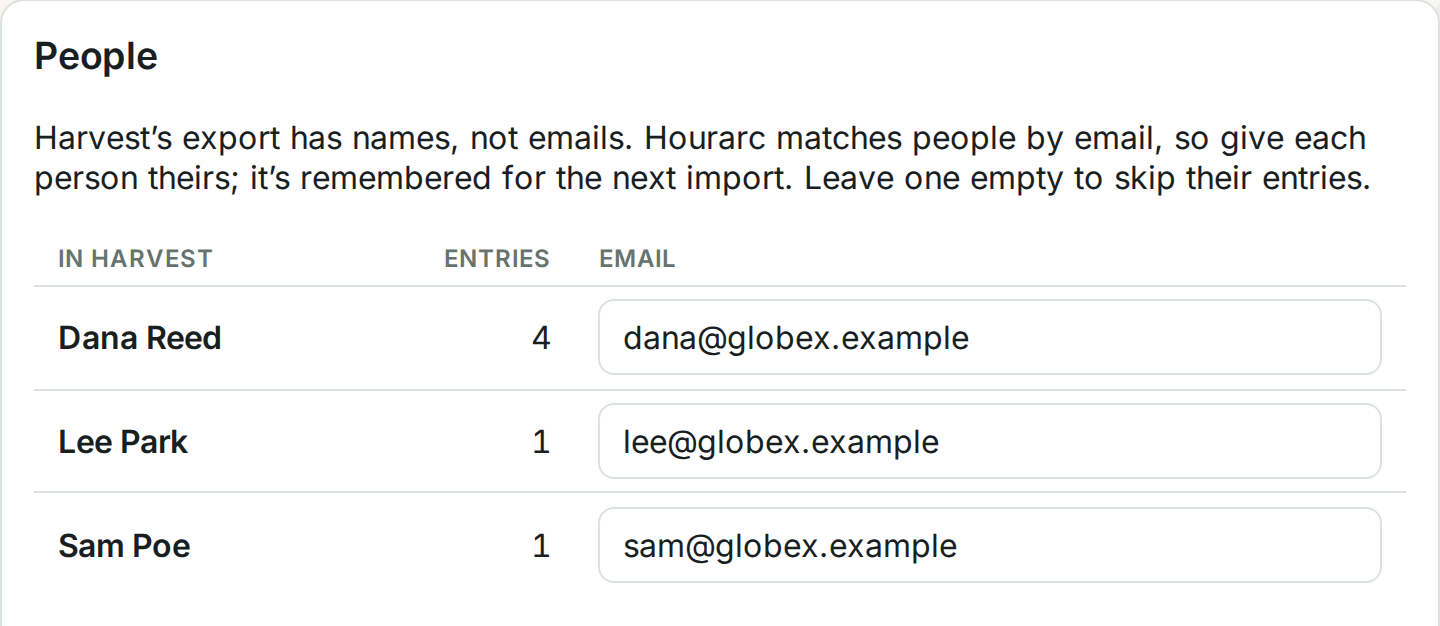
- Hourarc fills in what it can. "from an earlier import" under an email means you gave it last time. "matched by name, please check" means someone already in Hourarc has exactly that name. Make sure it's the right person.
- Leave an email empty to skip that person's entries.
- Hourarc remembers each email for your next import from Harvest.
4. Check what will be created
Below the People table, Hourarc shows how many entries it found and what it will create.
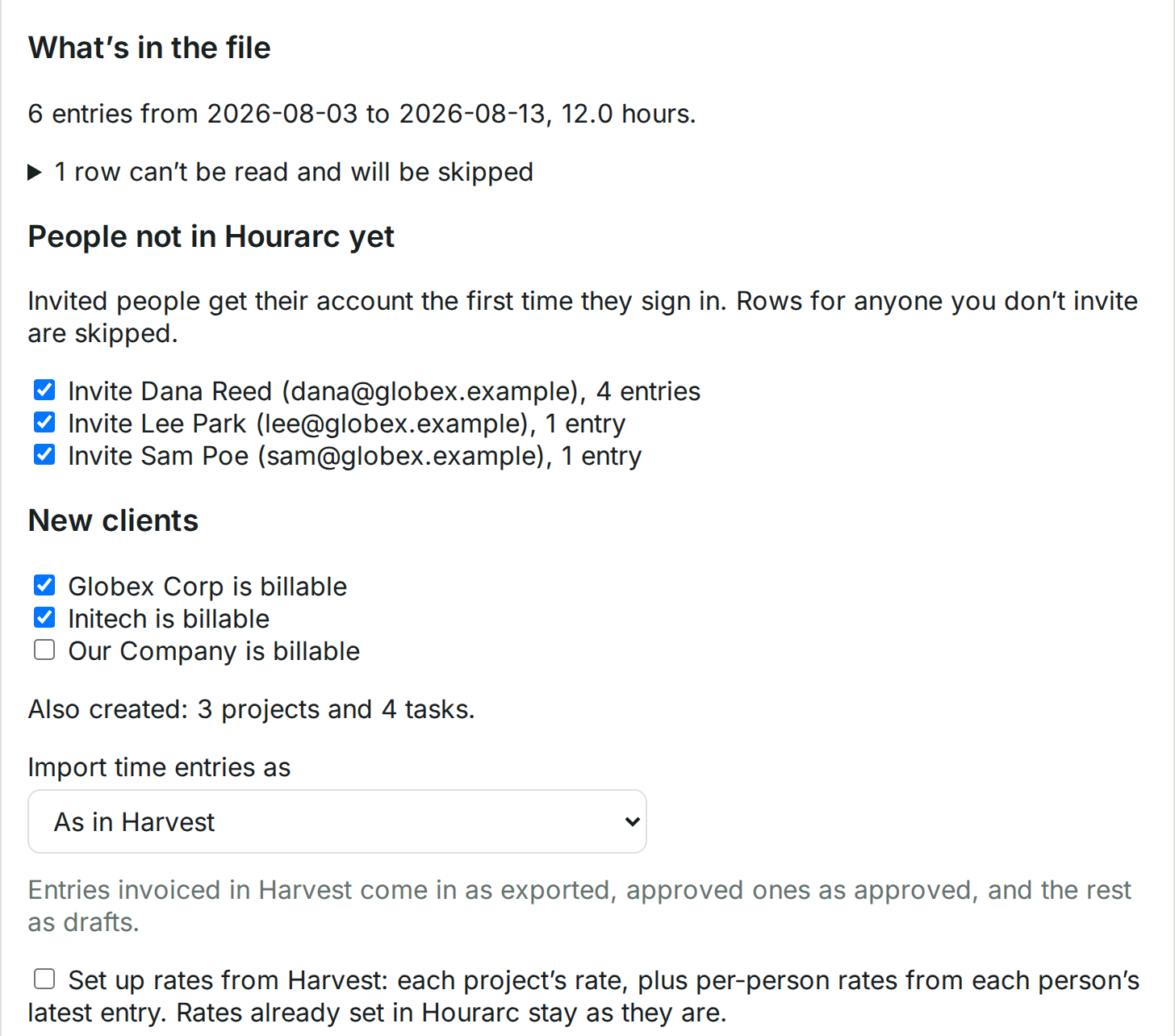
People not in Hourarc yet are invited. Each person claims their account the first time they sign in with that email: with Sign in with Google for a Google account at your organization, or with a sign-in email with a temporary password sent from the Users page. Deselect anyone you don't want to invite, and their entries are skipped.
New clients: select the ones that are billable. Each one starts the way most of its entries were marked in Harvest. That's only the default for time logged later: each imported entry keeps whether Harvest marked it billable.
Import time entries as: As in Harvest is usually right:
- Entries invoiced in Harvest come in as Exported. They were already billed, so they never show up for a QuickBooks export from Hourarc.
- Entries approved in Harvest come in as Approved.
- Everything else comes in as Draft, so people can still edit it.
You can choose one state for everything instead.
Set up rates from Harvest fills in Hourarc's rates from Harvest's. Each project gets the rate most of its people were last billed at. Anyone billed or paid differently on a project gets their own rate on it, from their latest entry. A rate you've already set in Hourarc is never changed. Either way, every imported entry keeps the rate it had in Harvest.
5. Preview, then import
Choose Preview import to see which time entries would be created or skipped. No changes are saved. Review the results, then choose Import.
If some of the file's time falls on days that have already been submitted, approved or exported in Hourarc, the import stops and lists those days for each person. Hourarc never adds time to a locked day. Choose Import the other dates to import everything else, or Cancel import. To import that time too, unlock those days first, then choose the file again.
Every import is listed under Past imports on the import screen, in review until you finalize it. While it's in review:
- Undo deletes every time entry the import added, even ones people have since edited, submitted or approved. It also deletes the clients, projects and tasks the import created, unless other time uses them. The people it added stay; you can deactivate any you don't want.
- Its time isn't included in the QuickBooks export.
6. Check the result
Open Reports → Hours and pick the same period you exported. Choose Detailed and compare its Hours total with the total on Harvest's report. The totals should match for the time entries imported. If they differ, review the import results for skipped entries, missing email matches or unreadable data. The Rounded hours total beside it is Hourarc's own rounding. It only differs if you've set a rounding increment in Settings → Time. To compare client by client, switch to Summary and break it down by client.
7. Finalize the import
When the totals match and your team has looked over their time, choose Finalize import under Past imports. From then on its time is ordinary time, the QuickBooks export includes it, and the import can't be undone. A week holding time the import brought in as submitted, approved or exported is then locked as a whole, its empty days included, just like a week your team submitted in Hourarc.
If your team kept the real client inside the task name
Some teams use Harvest's Task column to hold more than a task: a
person and a client written together, like ann:Acme. Hourarc takes
Client, Project and Task exactly as Harvest has them, so each of those
would become a task of its own.
When most of a file's tasks look like that, Hourarc warns you before anything is imported. If you see that warning, email support@hourarc.com before importing, and we'll work out how to bring your history across properly.
Questions
Email support@hourarc.com.